Image Processing Setup Guide#
This guide shows you how to set up both image processing plugins for optimal image handling in your MkDocs documentation.
Overview#
We use two complementary plugins for complete image handling:
| Plugin | Purpose | Features |
|---|---|---|
| Material's optimize | Image optimization | Compression, WebP conversion, responsive sizes |
| glightbox | Interactive viewing | Click-to-zoom, galleries, lightbox, navigation |
Both plugins are FREE and work together seamlessly.
Prerequisites#
Before starting, ensure you have:
- Python 3.8 or higher installed
-
uvpackage manager installed - MkDocs Material theme installed
- Virtual environment activated
Installation Overview#
Quick Summary:
# 1. Install Python packages
uv add "mkdocs-material[imaging]"
uv add mkdocs-glightbox

# 2. Install system dependencies (see platform-specific sections below)
# Windows: Use MSYS2
# macOS: Use Homebrew
# Linux: Use apt/yum/zypper

# 3. Verify installation
mkdocs build
Part 1: Material's Image Optimization#
Step 1: Install Python Package#
The Material imaging extra includes Pillow and CairoSVG:
Expected output:
Resolved XX packages in XXXms
Installed 3 packages in X.XXs
 + pillow==X.X.X
 + cairosvg==X.X.X
 + cssselect2==X.X.X
Step 2: Install System Dependencies#
Material's optimize plugin requires two system libraries:
- Cairo Graphics - Image rendering and processing
- pngquant - PNG compression
Installation varies by platform:
Windows Installation (MSYS2)#
Install MSYS2 (if not already installed):
- Download installer from msys2.org
- Run installer and follow default options
- Open MSYS2 UCRT64 terminal (NOT MinGW or MSYS)
Important: Use UCRT64 Terminal
Make sure you use the MSYS2 UCRT64 terminal (blue icon), not the MinGW64 (purple) or MSYS (brown) terminals. The package names are different for each environment.
Update MSYS2:
If terminal closes, reopen and run again:
Install Cairo Graphics and pngquant:
Dependencies Installed Automatically
The cairo package automatically installs: freetype, libffi, libjpeg-turbo, libpng, and zlib.
Add to PATH (Critical!):
- Find MSYS2 bin directory (usually
C:\msys64\ucrt64\bin) - Open Windows Settings → System → About → Advanced system settings
- Click "Environment Variables"
- Under "User variables", find "Path" and click "Edit"
- Click "New" and add:
C:\msys64\ucrt64\bin - Click OK on all dialogs
- Restart your terminal/VS Code for PATH changes to take effect
Verify installation:
Open a new Command Prompt or PowerShell window:
Expected output: 2.X.X (XXXX)
Troubleshooting Windows Installation
Problem: pngquant: command not found
Solutions: 1. Verify you added C:\msys64\ucrt64\bin to PATH 2. Restart your terminal/VS Code completely 3. Check the path exists: dir C:\msys64\ucrt64\bin\pngquant.exe 4. Try running with full path: C:\msys64\ucrt64\bin\pngquant.exe --version
macOS Installation (Homebrew)#
Install Homebrew (if not already installed):
Install Cairo Graphics:
Install pngquant:
Verify installation:
Linux Installation (apt)#
Update package list:
Install image processing libraries:
sudo apt-get install libcairo2-dev libfreetype6-dev libffi-dev libjpeg-dev libpng-dev libz-dev pngquant
Verify installation:
Linux Installation (yum)#
Install image processing libraries:
sudo yum install cairo-devel freetype-devel libffi-devel libjpeg-devel libpng-devel zlib-devel pngquant
Verify installation:
Step 3: Configure in mkdocs.yml#
The optimize plugin is already configured in your mkdocs.yml:
plugins:
  - optimize:
      enabled: true
      cache: true
      cache_dir: .cache/plugins/optimize
      optimize_png: true           # Compress PNG images
      optimize_png_speed: 4        # 1 (slow/best) to 10 (fast/ok)
      optimize_png_strip: true     # Remove metadata
      optimize_jpg: true           # Compress JPG images
      optimize_jpg_quality: 85     # Quality 0-100
      optimize_jpg_progressive: true
Configuration Options:
| Option | Default | Description |
|---|---|---|
enabled | true | Enable/disable plugin |
cache | true | Cache optimized images |
cache_dir | .cache/plugins/optimize | Cache location |
optimize_png | true | Enable PNG compression |
optimize_png_speed | 4 | Compression speed (1-10) |
optimize_png_strip | true | Remove PNG metadata |
optimize_jpg | true | Enable JPG compression |
optimize_jpg_quality | 60 | JPG quality (0-100) |
optimize_jpg_progressive | true | Progressive JPG |
Step 4: Test Image Optimization#
Create a test page with images:
# Test Image Optimization

This image will be automatically:
- Compressed
- Converted to WebP (if supported by browser)
- Stripped of metadata
Build and verify:
Check the site/img/ directory - you should see optimized versions of your images.
Part 2: Glightbox Interactive Lightbox#
Step 1: Install Glightbox Plugin#
Expected output:
Step 2: Configure in mkdocs.yml#
The glightbox plugin is already configured:
plugins:
  - glightbox:
      touchNavigation: true        # Swipe to navigate on mobile
      loop: false                  # Don't loop through gallery
      effect: zoom                 # Zoom animation effect
      slide_effect: slide          # Slide between images
      width: 100%
      height: auto
      zoomable: true               # Allow zoom controls
      draggable: true              # Drag to pan zoomed images
      auto_caption: false          # Don't auto-generate captions
      caption_position: bottom     # Caption position if enabled
Configuration Options:
| Option | Default | Description |
|---|---|---|
touchNavigation | true | Swipe on mobile |
loop | false | Loop through images |
effect | zoom | Open animation (zoom/fade/none) |
slide_effect | slide | Navigation effect |
zoomable | true | Enable zoom controls |
draggable | true | Drag zoomed images |
auto_caption | false | Auto-generate captions from alt text |
Step 3: Use Lightbox in Documentation#
Basic image (auto-enabled):
Click the image to open lightbox view.
Image with caption:
When auto_caption: true, the alt text becomes the caption.
Disable lightbox for specific image:
Create image gallery:
Images on the same page become a navigable gallery.
Verification & Testing#
Test Both Plugins Together#
Create docs/test-images.md:
---
title: Image Processing Test
---
# Image Processing Test
## Test 1: Single Image

Click the image above to test lightbox functionality.
## Test 2: Image Gallery
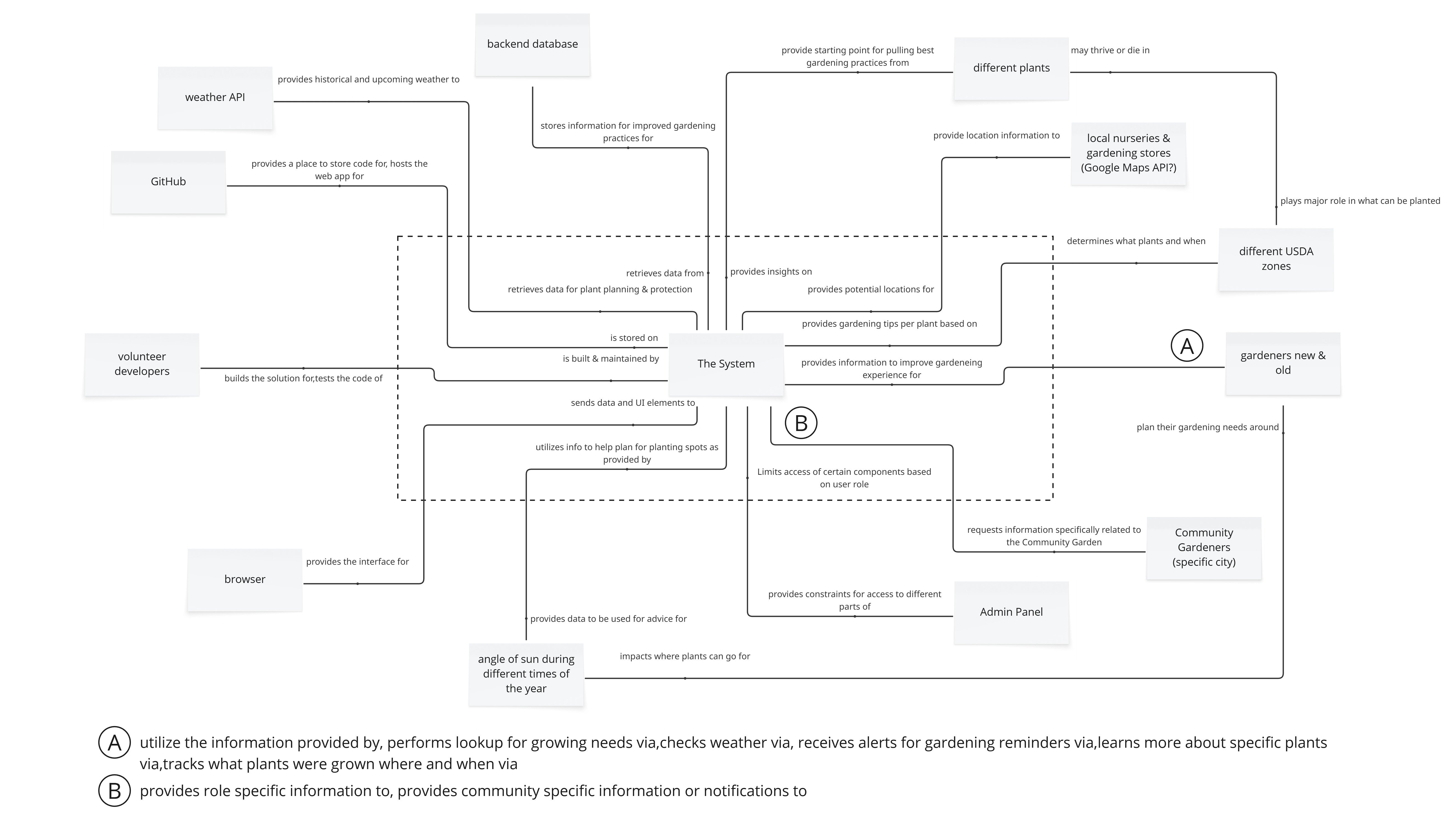
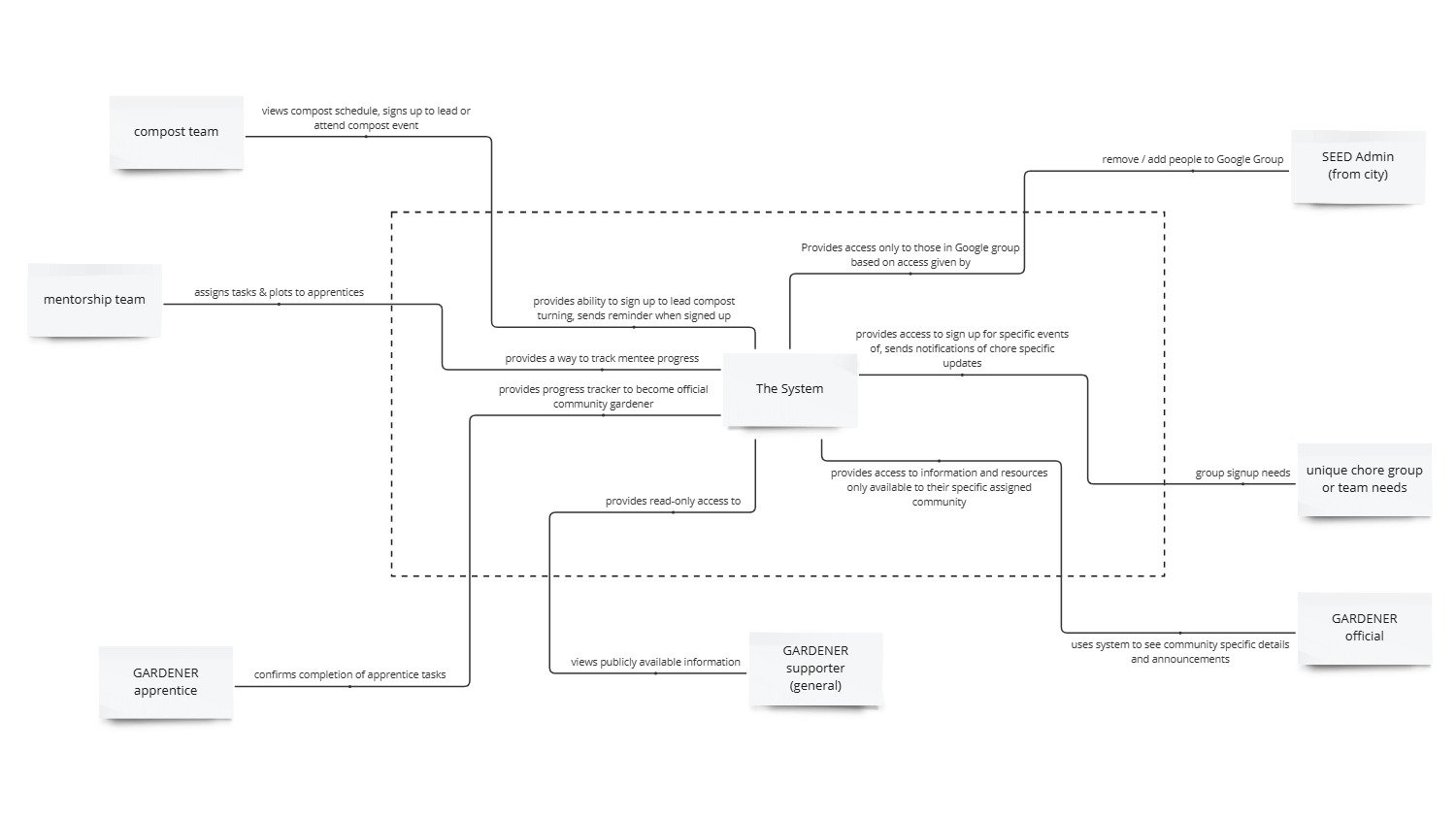
Click images and use arrow keys or swipe to navigate.
## Test 3: Optimized Small Images
{ .skip-lightbox }
Small images can skip lightbox with the `.skip-lightbox` class.
Build and Test#
Open browser to http://127.0.0.1:8000/test-images/
Verify: - [x] Images load quickly (optimization working) - [x] Clicking images opens lightbox (glightbox working) - [x] Can zoom in/out on images - [x] Arrow keys navigate between images - [x] Mobile: Swipe gestures work
Troubleshooting#
Common Issues#
Build fails with 'cairo' error
Problem: Cairo Graphics not installed or not in PATH
Solution:
Build fails with 'pngquant' error
Problem: pngquant not installed or not in PATH
Solution:
Images not optimizing
Problem: Optimize plugin not processing images
Checks: 1. Verify plugin is enabled: enabled: true 2. Clear cache: rm -rf .cache/plugins/optimize 3. Rebuild: mkdocs build --clean 4. Check build output for optimization messages
Lightbox not working
Problem: Clicking images doesn't open lightbox
Solutions: 1. Verify glightbox is installed: uv pip list | grep glightbox 2. Check browser console for JavaScript errors 3. Clear browser cache (Ctrl+Shift+R) 4. Verify image has proper markdown syntax (not HTML <img> tag)
Images load slowly
Problem: Optimization not reducing file size enough
Solutions: 1. Lower optimize_png_speed to 1 (slower but better compression) 2. Lower optimize_jpg_quality to 75 or 80 3. Manually resize large images before adding to docs 4. Use WebP format for new images
Performance Tips#
Image Size Guidelines#
| Image Type | Recommended Max Size | Format |
|---|---|---|
| Screenshots | 1920x1080 | PNG → WebP |
| Photos | 1600x1200 | JPG (quality 85) |
| Diagrams | 1200x800 | PNG → WebP |
| Icons | 128x128 | PNG or SVG |
| Thumbnails | 400x300 | JPG (quality 80) |
Optimization Best Practices#
- Resize before adding: Don't upload 4K images if you only need 1080p
- Choose right format:
- Photos/screenshots → JPG
- Diagrams/logos → PNG
- Icons → SVG (no optimization needed)
- Use descriptive alt text: Good for accessibility and SEO
- Enable caching: Speeds up repeated builds
- Test on mobile: Verify images look good and load fast on mobile
Cache Management#
Clear optimization cache:
Cache location in .gitignore:
The cache directory should already be in your .gitignore.
Advanced Configuration#
Conditional Optimization#
Only optimize in production builds:
Set when building for production:
Custom Image Classes#
Skip optimization for specific images:
Configure in mkdocs.yml:
Multiple Image Sizes#
For responsive images, the optimize plugin automatically generates multiple sizes when using Material's image processing features.
Next Steps#
Now that image processing is set up:
- ✅ Add images to your documentation
- ✅ Test lightbox and optimization
- ✅ Monitor build times (caching should help)
- ✅ Check file sizes in
site/img/directory
Related Guides: - MkDocs Extensions Guide - Material for MkDocs Documentation - Glightbox Documentation
Reference Commands#
# Install both plugins
uv add "mkdocs-material[imaging]"
uv add mkdocs-glightbox

# Build with clean cache
mkdocs build --clean

# Serve locally
mkdocs serve

# Clear optimization cache
rm -rf .cache/plugins/optimize

# Verify system dependencies
pngquant --version
Last Updated: 2025-12-12 Maintained By: Gardening App Documentation Team